


This guide explains how to send test emails from pre-designed templates within the Webplanex Wallet application.
Prerequisites:
SMTP Settings:
Webplanex Wallet does not require SMTP configuration to send emails.
If SMTP is not configured, customer emails will still be sent successfully using our system.
If you prefer to use your own domain email server, you can configure your SMTP settings.
Refer to this guide for setup
-
Access Settings: Click on the "Settings" menu from the application.
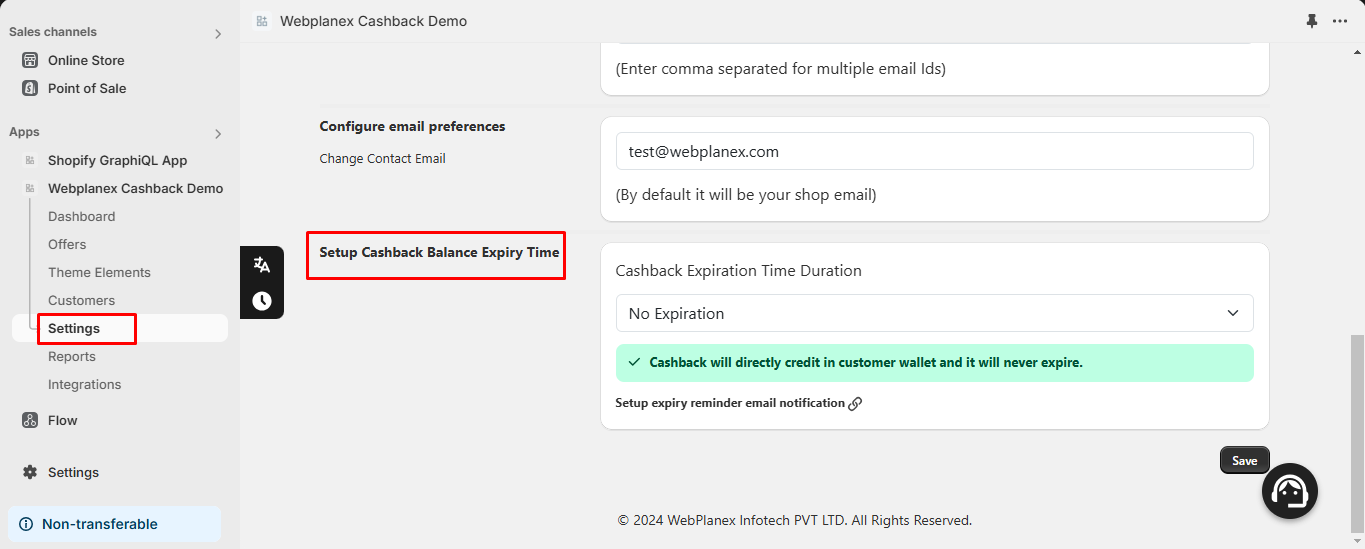
-
Open Email Settings: Within the settings menu, locate the "Email Settings" section and click on it.

-
Choose Email Template:

- You'll likely see a list of available email templates used for various notifications within Webplanex Wallet.
- Identify the specific email template you want to test by name.
-
Send Test Email:

- Click on the"Action" button associated with the chosen email template.
- Look for a button labeled"Send Test Email".
- Clicking the "Send Test Email" button will likely trigger a pop-up window.
- In this pop-up, enter the email address where you want to receive the test email.
- Once you've entered the recipient's email address, click the"Send" button.